Edit schedule
Click the Schedule Rhythm column to edit an existing schedule.
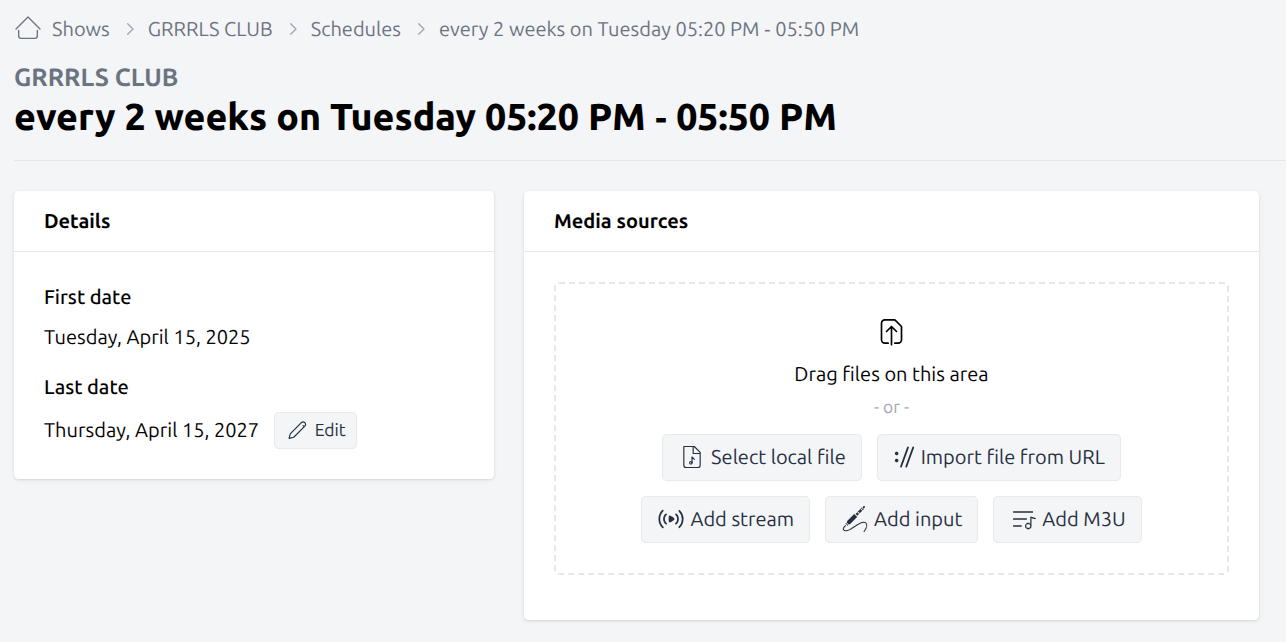
Schedules details
The schedule details card not only displays schedule information, but also allows you to edit the schedule end date.
Default schedule media sources
Media sources defined here serve as the default for the schedule if no specific media sources are assigned to the episode.
Learn more about this feature in the Media section of the documentation.
List of broadcasts
Next, you find a list of broadcast within the current schedule.
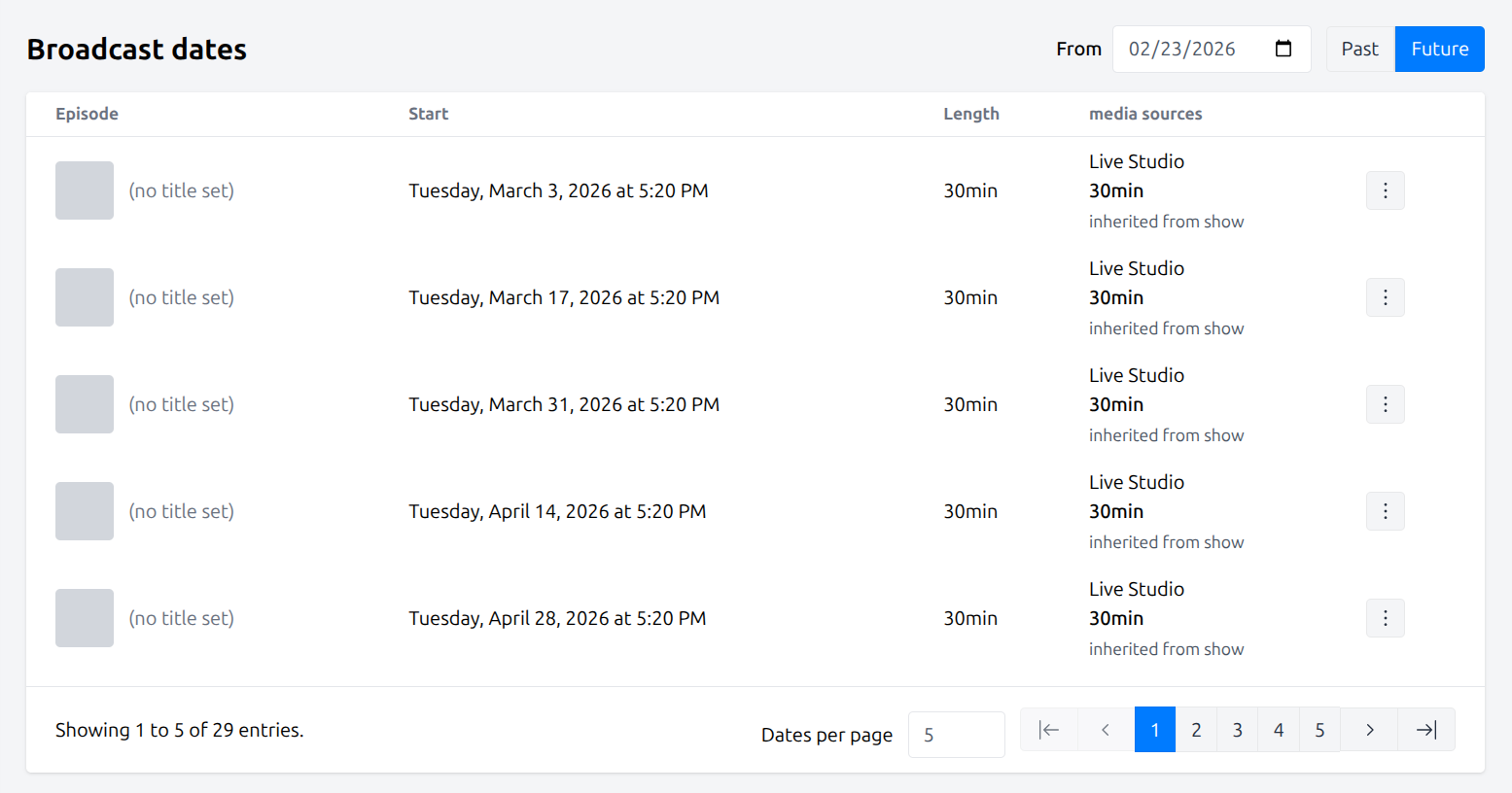
By clicking the 3-dots button (burger menu) on the right hand side of a broadcast, you are provided with the following actions:
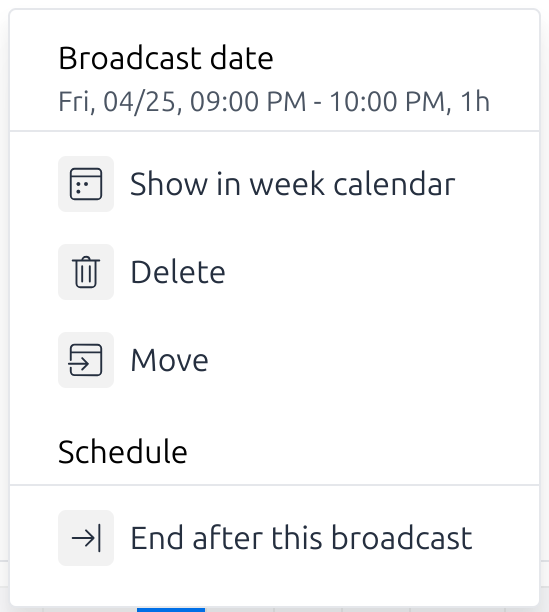
Broadcast actions
- Show in week calendar:
Jump to the calendar week, containing this broadcast.
- Delete:
Remove this broadcast. Note: The assigned episode data will not be deleted.
- Move:
Reschedule this broadcast to a different date, time and/or change its duration. A moved broadcast keeps being listed as part of the original schedule, even when the specific broadcast date does not match the recurrence rule. This information is hinted with a text “originally on {date}”.

Example of a moved broadcast date.
Schedule actions
- End After This Broadcast:
Terminate the schedule following this broadcast.
Delete schedule
In the Danger Zone at the bottom, you have the option to delete the schedule, including all timeslots.