Studio clock
The Studio Clock is a web application that provides an overview of the current time, scheduled programs (including countdowns), and assigned media sources.
You can reach the studio clock at aura.myradio.org/clock.
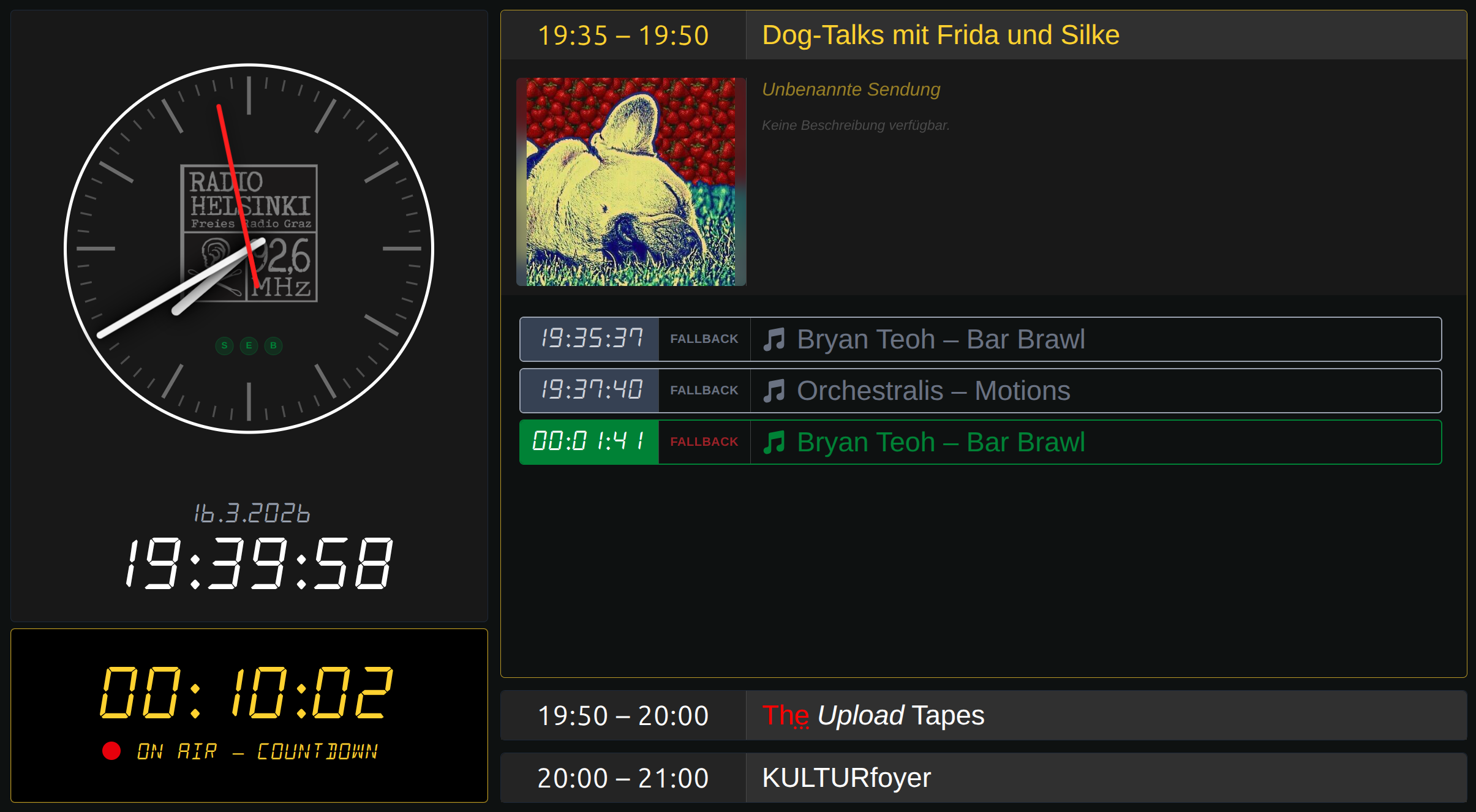
The Studio Clock is divided into a sidebar and a program information section.
Clock times are based on browser time
All times displayed in the Studio Clock are based on your browser’s local time settings. Ensure your system clock is accurate and set to the same time as the playout server to avoid any discrepancies.
Analog clock
By default you see an analog clock face in the left sidebar, just like in the old days.
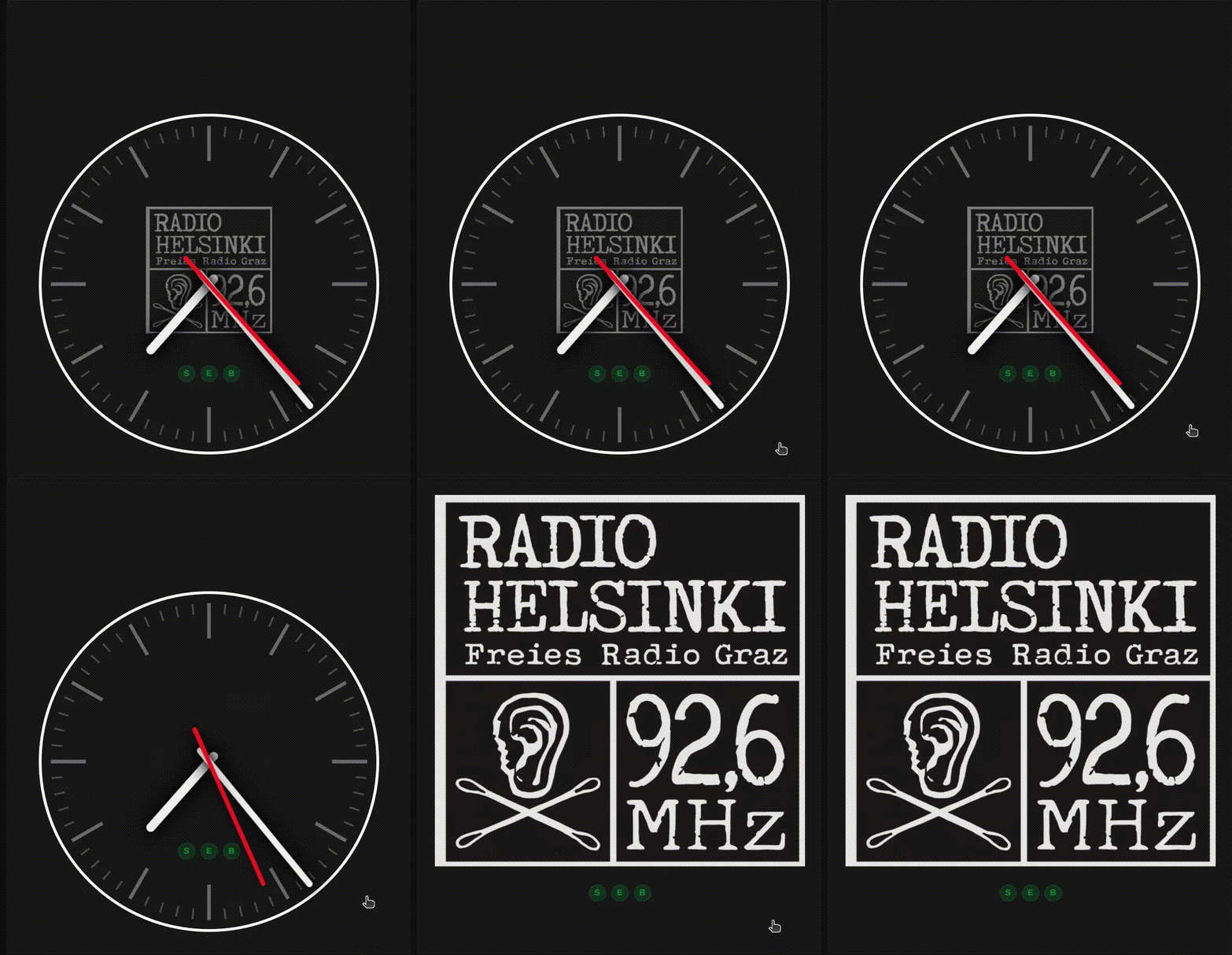
When clicking the clock, you can switch between three display modes:
Analog clock face with radio logo (default)
Clean analog clock face
Radio station logo only
Service status indicators
Behind the watchface (or depending on the mode, underneath the logo), you can find three round dots. These are status indicators, which are either green or red. They indicate connectivity to the service APIs for Steering (S), Engine (E), and Battery (B).
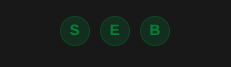
A green status means everything is functioning correctly, while a red status indicates a connectivity or service health issue.
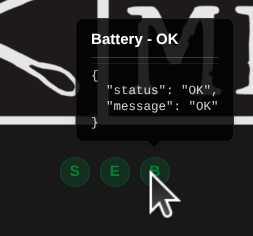
When hovering the mouse over the status dots, you can see the exact status of the service. Note that the status hovering only works in logo-mode and on desktop browsers.
Digital clock
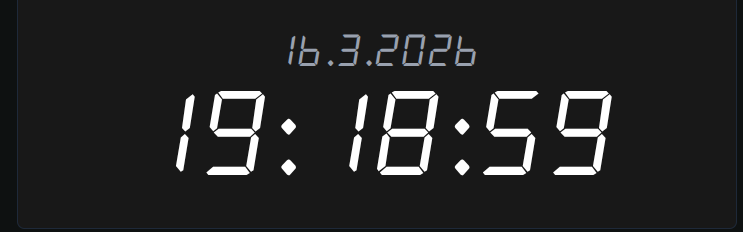
Underneath the analog clock you can find the digital clock, displaying the current date and time in a digital clock format.
Countdown
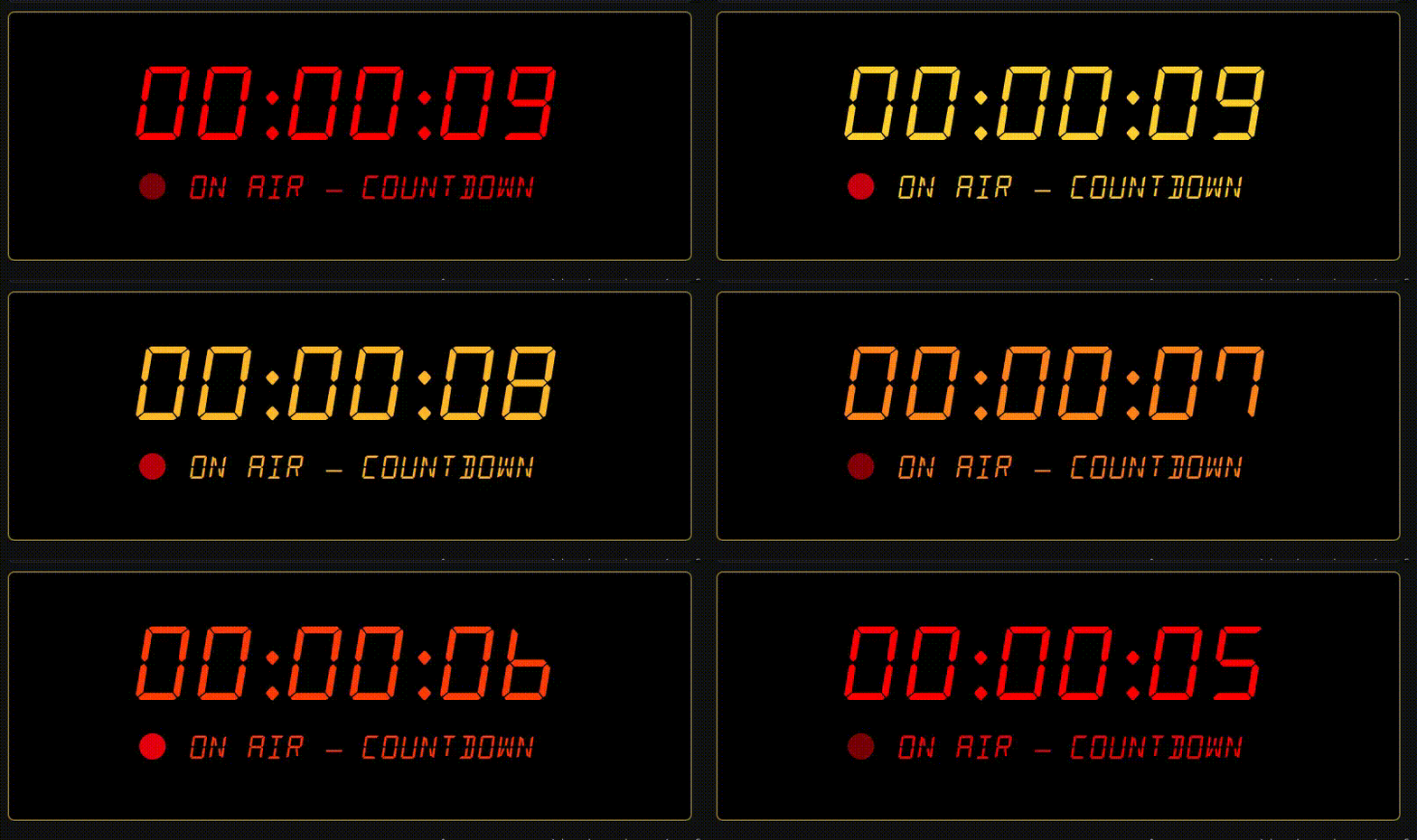
Below is a countdown segment, which displays the remaining time of the current episode.
During the last 10 seconds, it starts blinking red, in order to stay alert.
Current episode
On the right-hand section you can find details of the currently airing program.
The current episode is displayed with following information:
Start and end time of the broadcast
Episode cover image, using show cover image as fallback
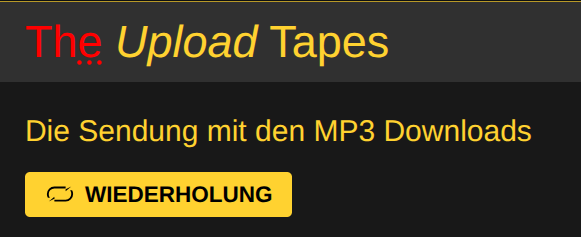
Whether the episode is a repetition (re-broadcast)
Episode title
Episode description
Episode media sources
Episode media sources
Media sources include:
Time-segment: Either broadcast time for past items, countdown for current item, or scheduled duration for upcoming items
Media type: Such as
LIVE,FILE,STREAM,POOL,FALLBACKorUNKNOWNTitle: For example the Stream URL, Studio Name or MP3 metadata
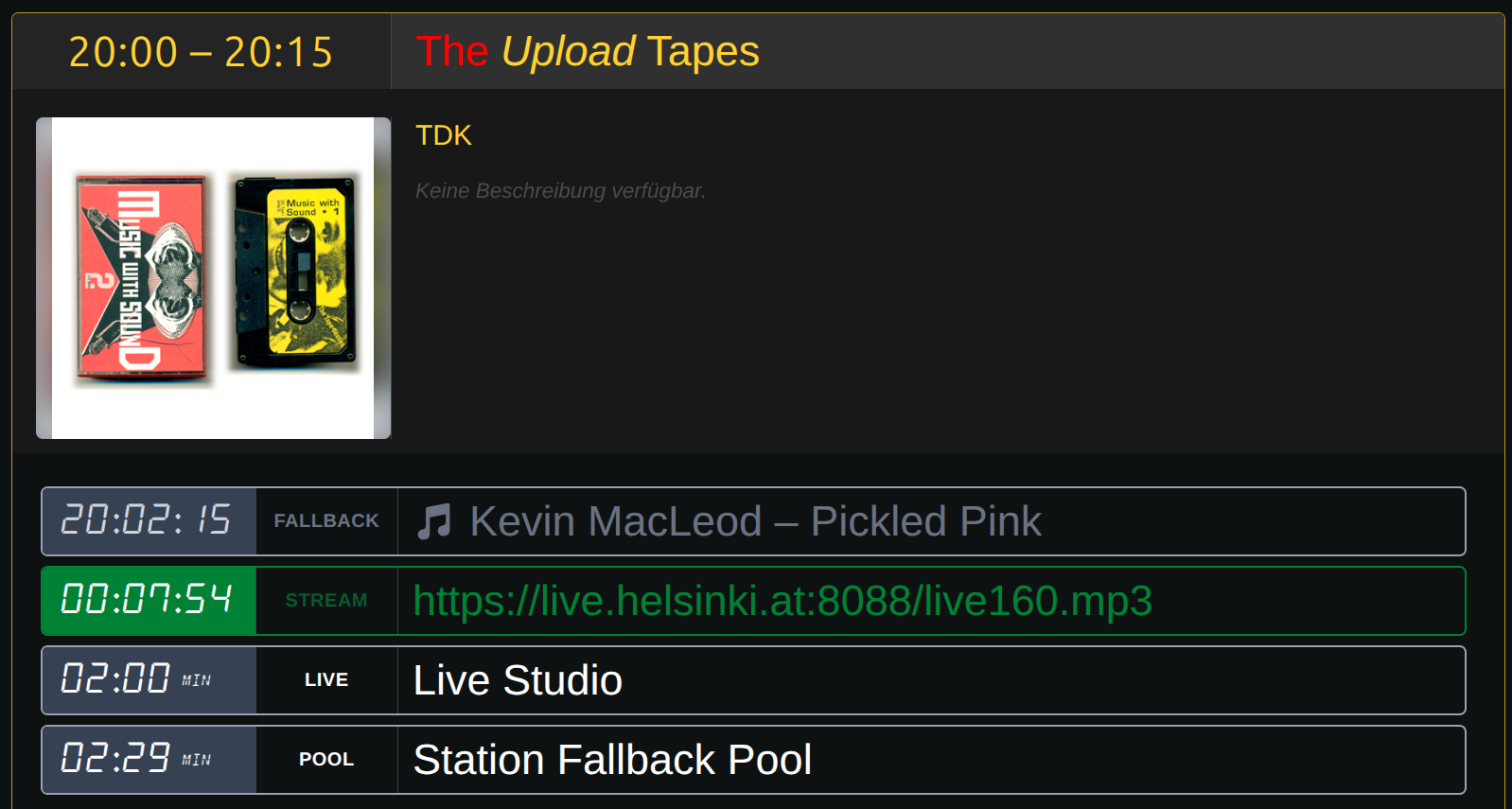
Past media sources are greyed out in the list. Whenever a new media source starts playing, the interface automatically scrolls to the current entry. The currently playing one is highlighted in green and includes a countdown, instead of the airtime. Media sources scheduled next within the episode are displayed in white. Their time segment is the scheduled broadcast duration.
When some scheduled media source is not able to be broadcast,
the playout system automatically switches to fallback media. When this happens, the
currently playing fallback media is indicated with a red-pulsing FALLBACK content type.

Upcoming episodes
Below the current episode information, the next and second-next episodes are displayed.

Language and time format
The studio clock automatically localizes text and date-time information based on your browser locale settings.
Currently, English and German are supported.