Week Calendar
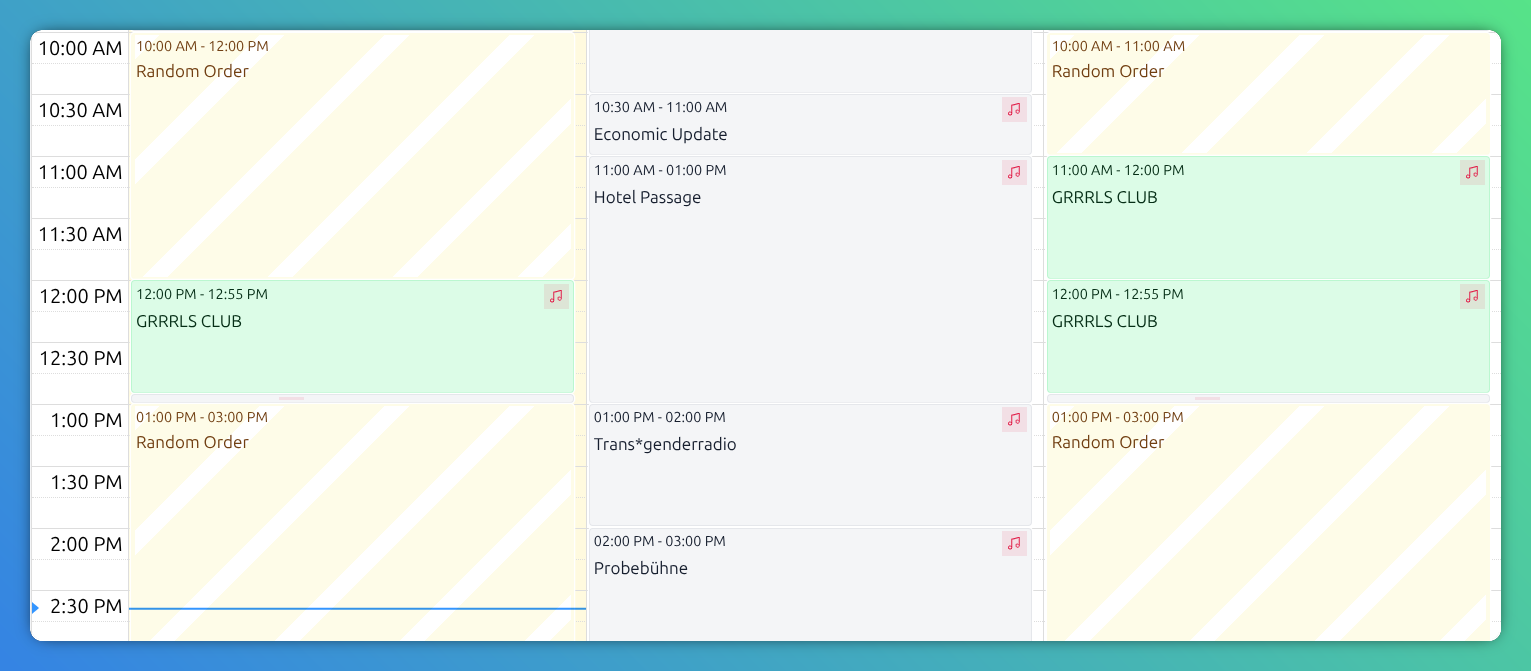
The Week Calendar provides a clear overview of your radio program schedule at a glance.

Calendar entries
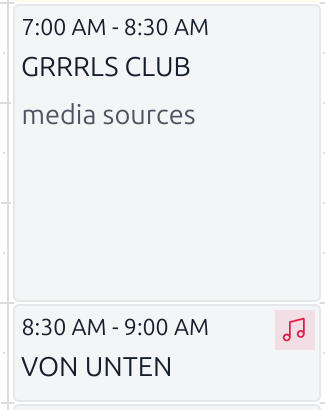
Each calendar entry represents a broadcast date with an assigned episode.
In the Week Calendar, only essential information is displayed:
The start and end time of the broadcast.
The show name.
An icon indicating missing media sources (red music note).
Edit calendar entries
Click the item to open the context menu with the available actions.
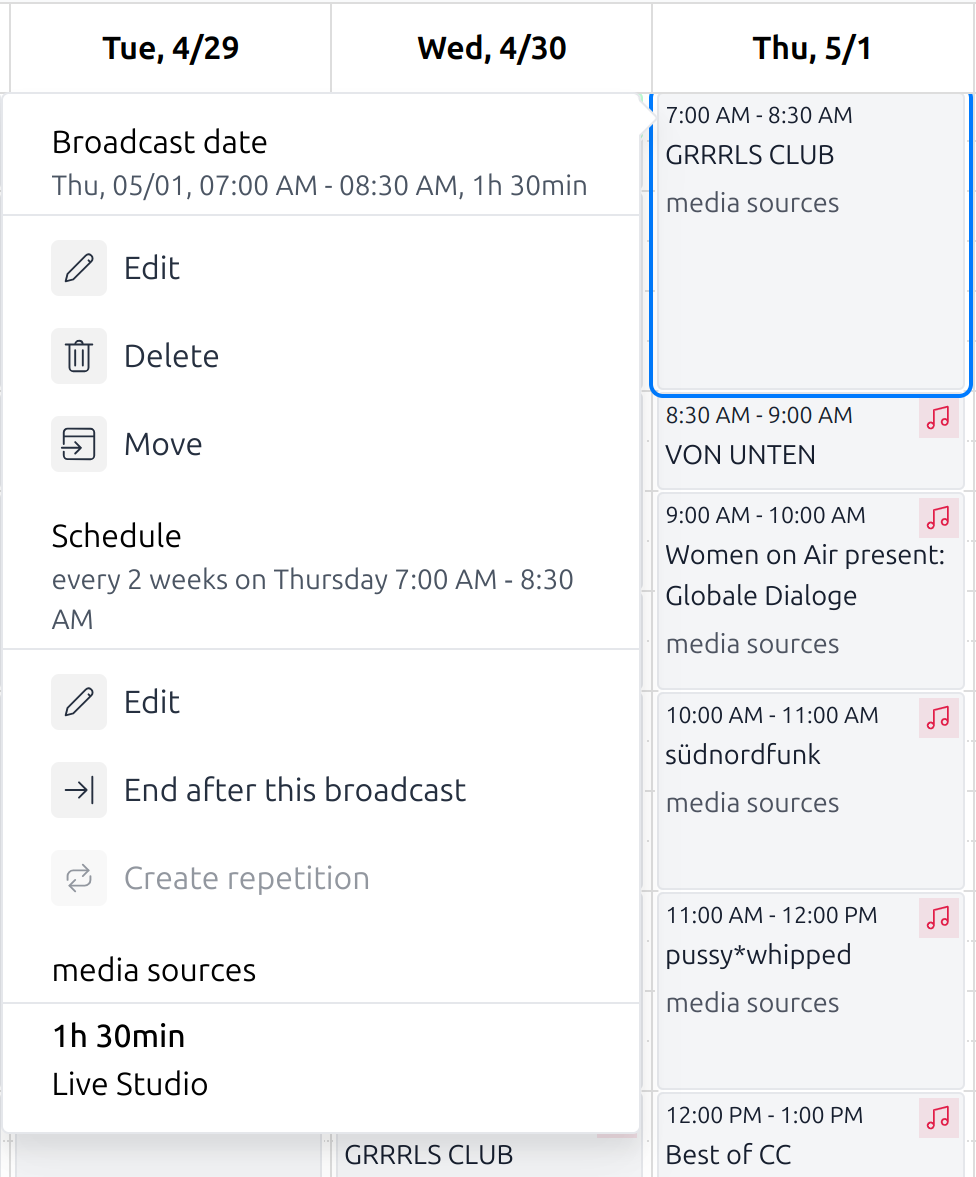
In addition to general information such as the broadcast date/time and the schedule time range, the dialog provides the following actions:
Broadcast actions
- Edit:
Modify the episode details, including metadata, image, and media sources.
- Delete:
Remove this broadcast. Note: The assigned episode data will not be deleted.
- Move:
Reschedule this broadcast to a different date and/or time.
Schedule actions
- Edit:
Modify the schedule settings.
- End After This Broadcast:
Terminate the schedule following this broadcast.
The context menu also displays the assigned media sources.
Edit currently playing or historic broadcasts
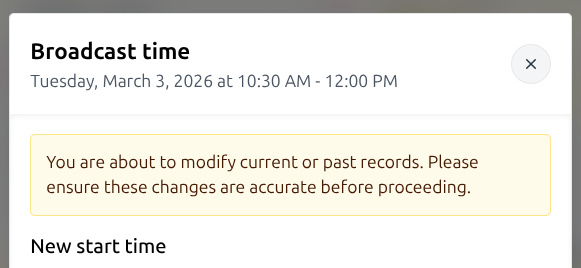
Usually you will only modify future broadcasts. When editing past or currently playing broadcasts, the UI issues a warning.
This can be required to get the playout back on track, for example to remove a wrongly playing media source.
But handle with care, as you are about to change history or intervene in the playout.
Create a new schedule
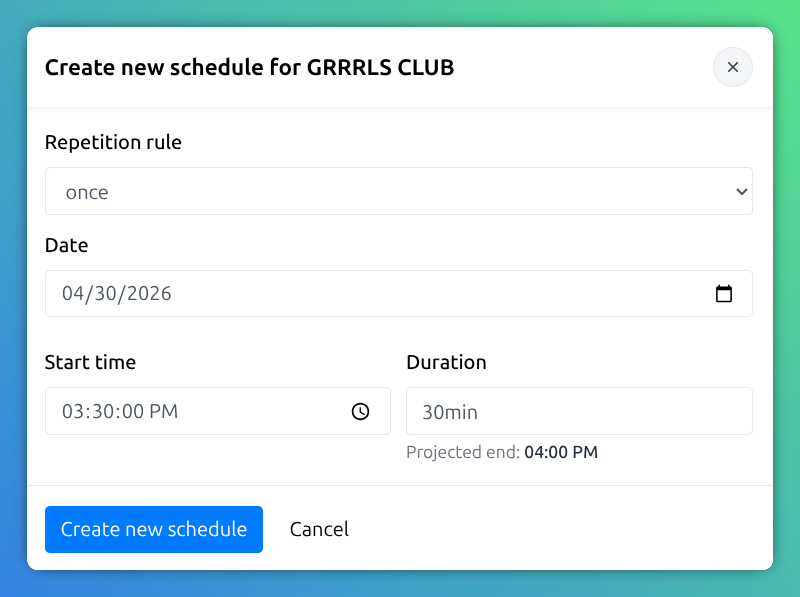
Click any unscheduled area in order to add a new schedule.
Alternatively, switch to the Show > Schedule section of you show and click Create new schedule to add a new schedule.
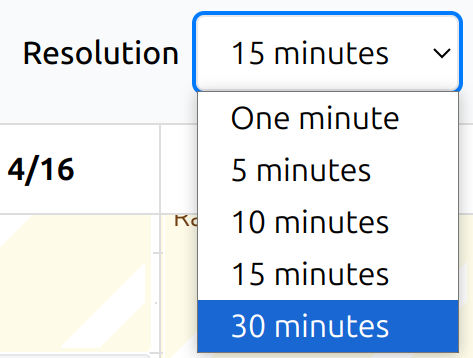
Change the resolution
Use the Resolution dropdown to adjust the level of detail displayed.
Filter broadcasts
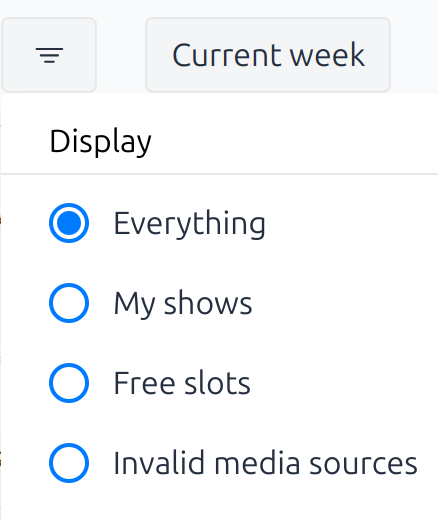
Use the Filter button to display broadcasts based on the selected filter option:
- Everything:
Display all broadcasts.
- My shows:
Displays only broadcasts that you administrate as a host.
- Free slots:
Displays only timeslots available for scheduling new broadcasts.
- Invalid media source:
Displays timeslots that are either missing a media source or do not match the required length.
- Empty episodes:
Displays timeslots that are missing an episode title.
Date navigation
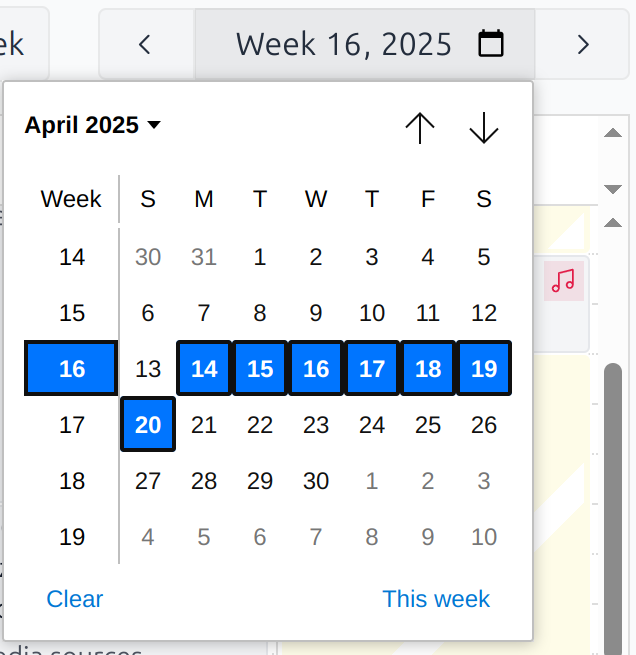
The Current Week button returns you to the current week’s schedule.
Jump to day view
Click the column header displaying the date to quickly jump to the corresponding Day Calendar.

Highlighted broadcasts
In order to get a quick overview of upcoming broadcasts, broadcast dates of shows you administrate are highlighted in green.