Annual Timeslot Prolongation
The Annual Timeslot Prolongation is run once a year in order to extend the complete program schedule with new timeslots for the next year.
When a schedule is created, the system automatically generates timeslots according to the defined recurrence rule.
If the schedule has no end date, these timeslots are generated only until the end of the current calendar year. Therefore, a timeslot prolongation is required at year-end to extend the schedule into the next year.
Prolongation interface
To access the annual prolongation interface, navigate to prolongation in the sidebar.
By default, the prolongation uses the duration of the upcoming calendar year as its basis.
Alternatively, the system can apply a prolongation period derived from the schedule’s start date plus a defined number of days. This behavior is configurable only by administrators and requires a service restart to take effect.
For details, see the section “Change the way timeslots for schedules are created” in the Administration Guide > Update and Maintain section.

Starting annual prolongation
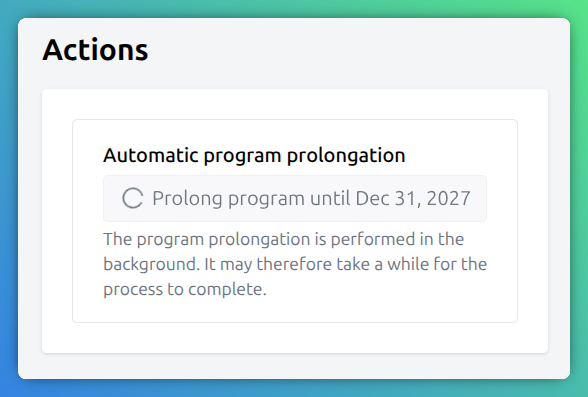
Click Prolong until <date> to start the prolongation process.
Use caution when initiating the prolongation job, as it cannot be easily reversed.
The operation may take some time to complete. You can continue working on other tasks while it runs and return to this view later.
Solving individual conflicts
Once the job finishes, a list of conflicting show schedules is displayed. These conflicts occur when newly generated timeslots overlap with existing schedule timeslots.
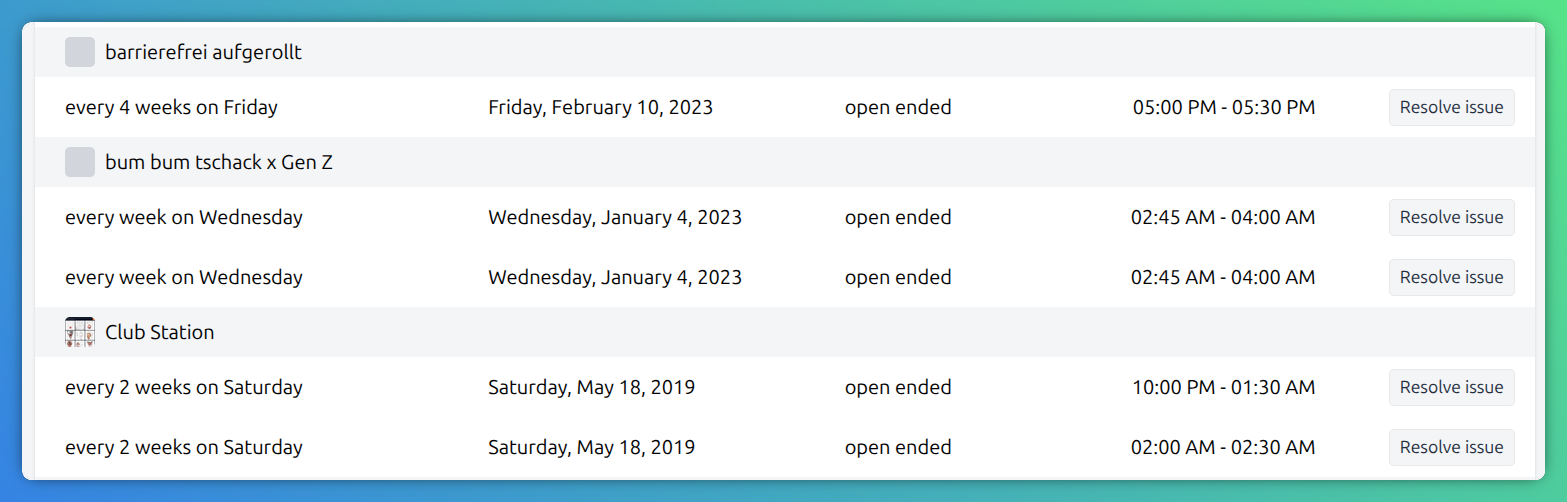
To finalize the prolongation, each conflict must be resolved manually. The resolution workflow is the same as in the standard collision detection interface. For details, refer to the Timeslot Collision Detection section.

Open conflicts are hinted with warning icon the sidebar navigation.