Alternative media sources
AURA provides multiple mechanisms for a convenient radio programming experience and avoiding dead air.
There are two general concepts:
Fallback program: Last resort for filling gaps in the schedule or missing media sources:
Default media sources: Global default media sources per show or schedule.
Fallback program
The fallback program is automatically scheduled to fill gaps in the radio station’s schedule or to intervene in cases of missing or damaged media sources.
In other words, if no timeslot for a given time is scheduled in the program calendar, the fallback program will be played instead.
It is also activated when extended periods of silence or excessive noise (beyond a certain threshold) is detected during an episode. Typically, the fallback program plays random music from a predefined fallback music pool.
When some given media sources do not fill up some timeslot, the fallback program is used to fill up the remaining time. In this case, the fallback program will not be visible in the calendar.
For more details on fallback program behavior and configuration using the Fallback program calendar / Music Grid interface, refer to the Fallback Program page of the calendar section.

The fallback program will be played only as a last resort, when no (Default) Media Sources can be resolved.
Default media sources
Default media sources enable you to define a global audio source without requiring a media source to be set for each episode individually.
Default media sources can be configured per show (default show media source) or per schedule (default schedule media source).
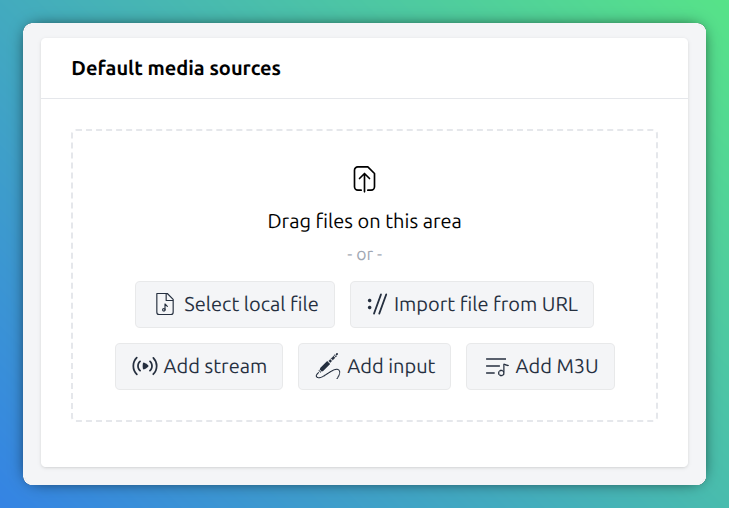
Default show media source
This is useful in cases a host broadcasts e.g. from the live studio by default. In order to avoid setting the media source for each and every live episode, the default media source can be set on a show level.
In order to set the default show media source, navigate to the show settings.
Default schedule media source
In contrast to the default show media source, this one is set on a schedule level.
Setting a default media source per schedule, allows you to have different defaults for different broadcast dates.
Example on using a schedule media source
A host has three show schedules:
Live show every Tuesday,
A stream from home every Thursday
A pre-recorded show every Sunday.
Here the first two schedules, can be pre-configured with line input and stream media sources on
schedule level.
In order to set the default schedule media source, navigate to the calendar and select the schedule you want to modify.
Media source overrides and inheritance
At any given time, only one media source level is selected for playout. Even when media sources are assigned at the show, schedule, and episode levels, only the most specific one takes precedence.
Media sources, including the fallback program, are prioritized in the following top-down order:
Fallback program
Default show media source
Default schedule media source
Episode media source (highest priority)
This logic also works in reverse — if no specific media source is set for an episode, the system will fallback to the schedule or show-level media source, if available.
Example for inherited default media source
There is no episode assigned to this specific episode. Since there is a default show media source configured, the episode is displayed with the inherited media.

Inherited media sources will not fill any remaining duration
If a media source consumes the full duration of a timeslot, parent media sources will not fill any remaining duration. Media source inheritance operates on an “all or nothing” basis.
Verify media inheritance in studio clock
Use the Studio clock to identify the source of the currently airing media. A grayed-out media source label on the right side of the current episode indicates an inherited or fallback source.

Example of live media source, but in fallback state.

Example of stream media source gathered from episode.
Set media license
Similar to episode media sources, default media sources also allow you to specify licensing information.
For more details on licensing, refer to the Media Licensing chapter.
Choose the proper license
Proper licensing of media assets is critical for maintaining legal compliance and respecting intellectual property rights.