Public profile
While Users are able manage to manage actual content, Profiles are designed for public presentation.
These are the “public faces” seen on radio station websites and show detail pages. Profiles provide information such as biographies, photos, and social links.
In most scenarios, a profile represents an actual system user and hence the two are linked. However, profiles offer additional flexibility:
One-time contributors: Use profiles for individuals who do not need system access, such as one-time show guests or external collaborators.
On-the-fly Assignment: You can add guests to a specific episode via the Contributors field in the episode details (see below).
Editorial team profile: Some shows do not have a dedicated user account for each host. In such cases, you can create a profile for the show itself and assign it to the show. An example for such profile is “Music editor team”.
Advanced profile management features are only available to program managers.
Create public profile on-the-fly
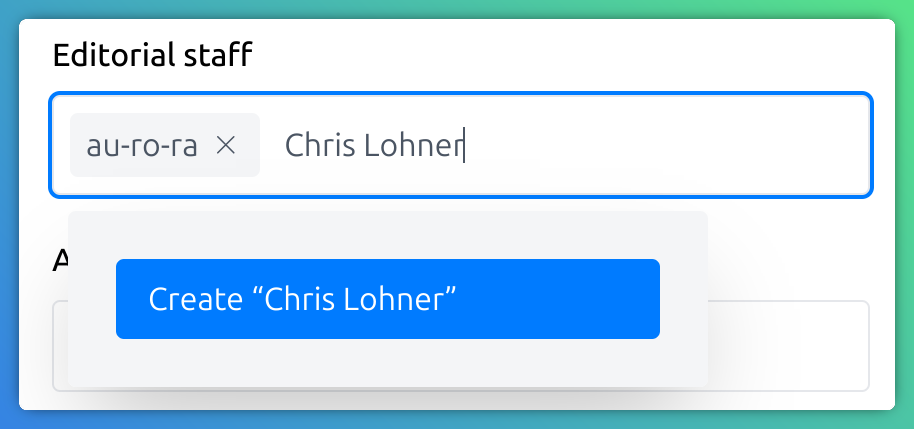
You can create a profile on-the-fly in the show settings.
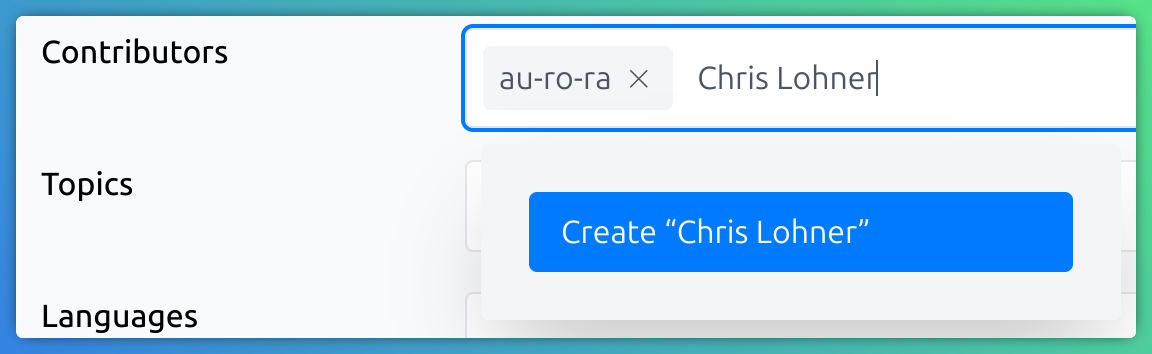
But also the episode contributor field allows ad-hoc creation of profile entries.
Manage public profiles
Program managers can manage all available profiles and their linked user accounts.
In the sidebar click on Profiles to get a list of all available profiles.

Click the Create new profile button to create a new profile entry. A profile only requires a name at minimum.
Filter the list of profiles by a search term. You can narrow the list by only editors or by assigned user account.
The Name column displays the name of the profile.
The Shows column displays the list of shows the profile is assigned to as part of the show’s editorial team.
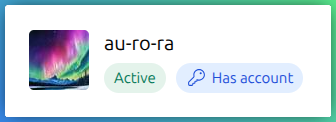
Each item displays if the profile is active and if there is a user account linked to the profile.
Edit profile details
When clicking an item you get the form to edit the profile.
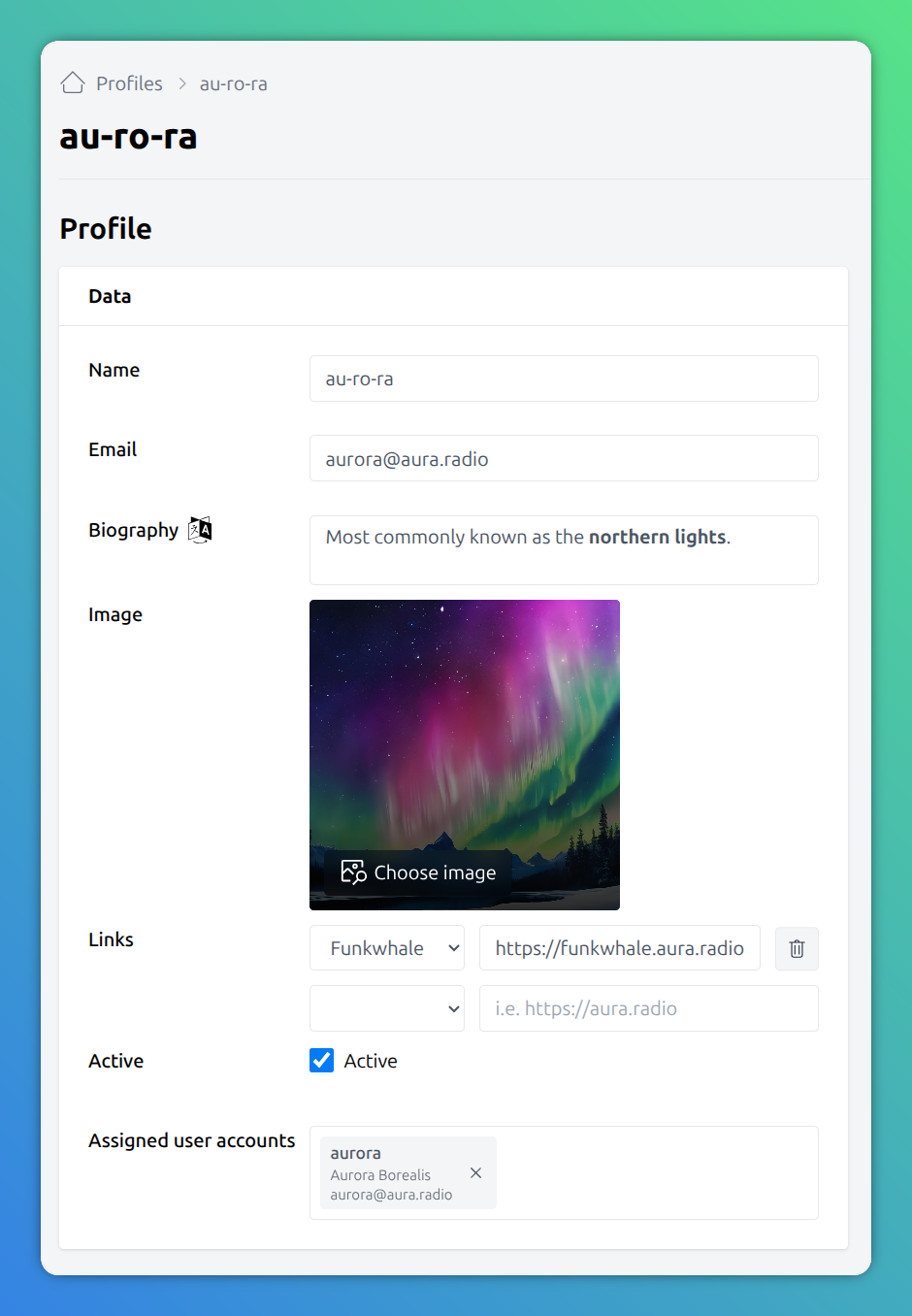
Note, that the biography can be provided in several languages. To enter a biography in another language, simply choose the language first using the language dropdown on the right-top next to the Translation language label. After selecting a language, enter the appropriate text in the biography field.

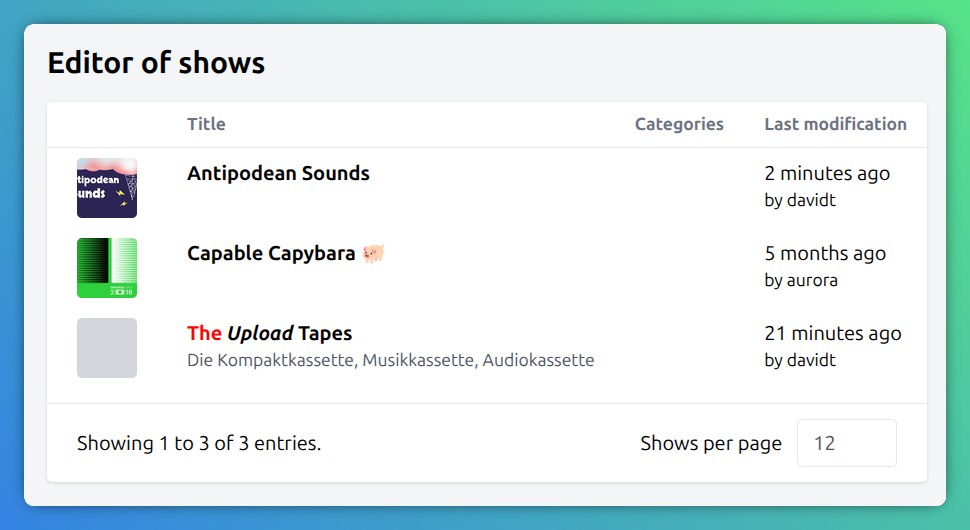
Editor of shows
Shows, which have the given profile in the editorial team are listed in the Editor of shows section.
Assign profile to user account
After linking a profile to a user account, the user is able to manage the profile themselves.
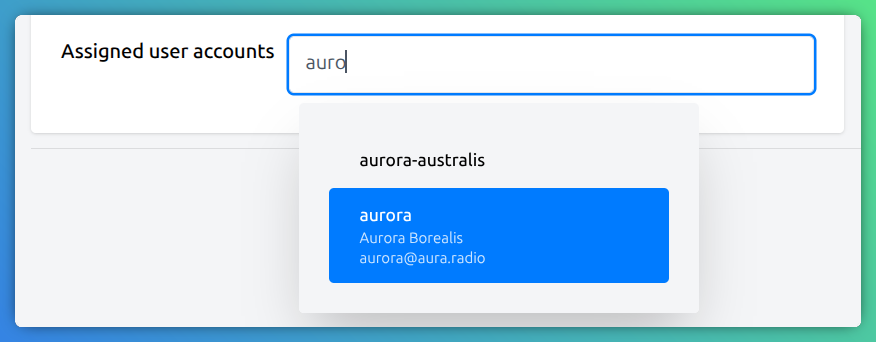
In order to assign some user account to the profile, first navigate to the profile form. Then, click the Assigned user accounts field, and filter for the account you want to assign.
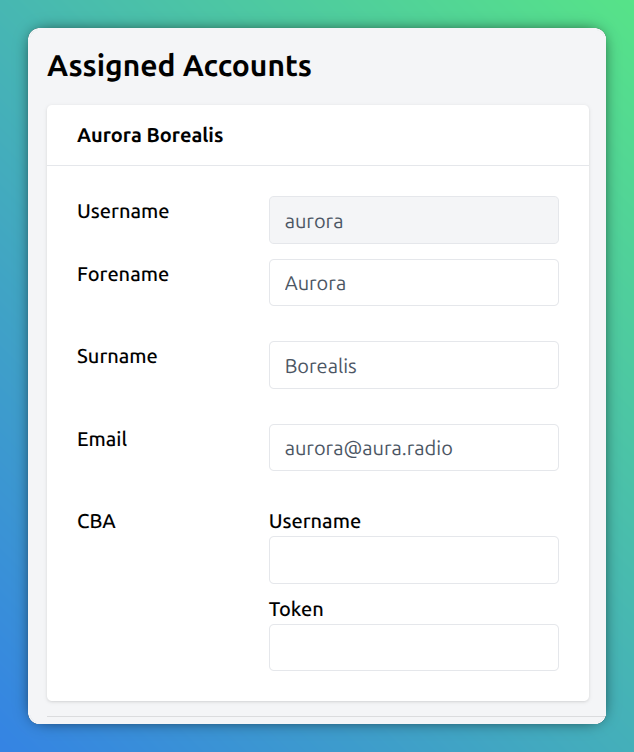
After that, the profile detail page lists the linked user account in the assigned Accounts section.
It is also marked with the Has account badge in the profile list.
Delete profile
Click the Delete profile button on the right top, to delete a profile.