AURA Playout

Deploy AURA Playout
To initialize the playout deployment execute:
$ make aura-playout.init
This creates a configuration file config/aura-playout/.env based on the sample.env located in
the same directory. Additionally this command creates the required folder structure and updates
relevant permissions.
Update the configuration file
For a production deployment verify at least the following settings. For testing the playout, the defaults should work in most cases.
Environment variable |
Description |
|---|---|
|
The password should match the one configured in AURA Web. Avoid using the default one. |
|
The location where Tank is storing audio sources. It defaults to |
|
The location where M3U playlists are provided. This is optional and defaults to |
|
The location where fallback audio is retrieved from. Such audio is played when nothing is scheduled. It defaults to |
|
The UID of the user running the PipeWire server. Usually this is the current user ( |
In case you prefer deploying AURA Web and AURA Playout on two distinct server instances (e.g. Advanced Deployment Scenario), you have to update the following variables too.
Environment variable |
Description |
|---|---|
|
Points to Steering in the local Docker network by default. Change value to |
|
Points to Tank in the local Docker network by default. Change value to |
It is important to note, that the URLs have to end with a trailing slash (/).
Verify if AURA Web is running
In order to avoid complicated debugging of the connection between AURA Playout and AURA Web, try
if the URL https://dashboard.myradio.org/steering/admin is working. It works if you get a login
page served.
Provide some audio files for fallback
Now fill the folder audio/fallback with some music, or the directory you have set for AURA_AUDIO_STORE_FALLBACK.
Any audio files located here will be picked up and played when nothing else is scheduled.
Configure the audio interface
AURA Playout requires you to have a ALSA compatible audio interface and PipeWire installed on the host machine. On Debian 12 PipeWire is installed by default.
Check if PipeWire is running
To check if PipeWire is running run ps -fp $(pgrep -d, -x pipewire).
Start and Connect AURA Playout
Option 1: Use an UI tool like qpwgraph, simply draw connections between the desired devices
Option 2: Use the cli tool
pw-linkOption 3: Use the auto connect feature
When connecting the correct audio ports you will hear the fallback music playing immediately.
Option 1: UI tool
First, start AURA Playout with
$ docker compose up -d
Then open a graph manager compatible with PipeWire, like qpwgraph. Now simply connect the AURA Playout nodes in_line_0 and lineout_0 with your audio device.
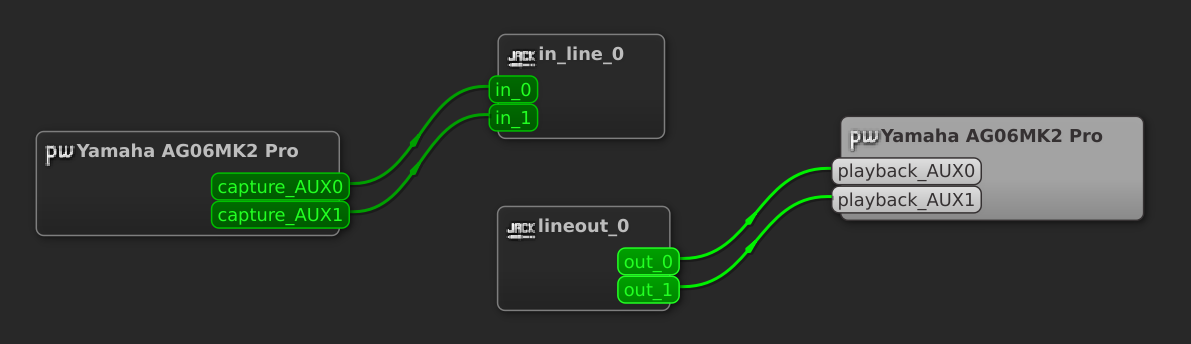
Option 2: CLI tool pw-link
To connect AURA Playout with your audio device(s) start everything with
$ docker compose up -d
Now list your input and output ports. There is a port for each channel on your device and a port for the left and the right channel from AURA playout.
# List the input ports
pw-link -i
# List the output ports
pw-link -o
Connect your port like in the example below, where you replace alsa_input.usb-Yamaha_Corporation_Yamaha_AG06MK2-00.pro-input-0:capture_AUX0 with your audio device given from pw-link.
# An example for connecting everything:

# line out
pw-link "lineout_0:out_0" "alsa_output.usb-Yamaha_Corporation_Yamaha_AG06MK2-00.pro-output-0:playback_AUX0"
pw-link "lineout_0:out_1" "alsa_output.usb-Yamaha_Corporation_Yamaha_AG06MK2-00.pro-output-0:playback_AUX1"
# line in
pw-link "alsa_input.usb-Yamaha_Corporation_Yamaha_AG06MK2-00.pro-input-0:capture_AUX0" "in_line_0:in_0"
pw-link "alsa_input.usb-Yamaha_Corporation_Yamaha_AG06MK2-00.pro-input-0:capture_AUX1" "in_line_0:in_1"
Option 3: Auto connect feature
If you don’t want to run Option 1 or Option 2 every time you start AURA Playout there is a way to connect everything when you start AURA Playout. For this you need to set the audio device(s) and channels in the .env file before you start AURA Playout.
$ docker compose run engine-core wpexec /etc/wireplumber/scripts/ls-ports.lua
This dumps details on every connected audio device. Grab the port.alias of your device and enter it in the .env. Press CTRL + C to exit the script.
Example Configuration
Given this device information, dumped by the previous command:
{ ["audio.channel"] = AUX0,
["port.physical"] = true,
["port.alias"] = Yamaha AG06MK2:capture_AUX0,
["node.id"] = 61,
["format.dsp"] = 32 bit float mono audio,
["port.direction"] = out,
["port.name"] = capture_AUX0,
["port.terminal"] = true,
["object.serial"] = 324,
["object.id"] = 66,
["object.path"] = alsa:pcm:1:hw:1,0:capture:capture_0,
["port.id"] = 0,
}
Set these values for the input and output settings in your .env file:
# Audio Device Settings
AURA_ENGINE_OUTPUT_DEVICE=Yamaha AG06MK2:playback
AURA_ENGINE_OUTPUT_CHANNEL_LEFT=AUX0
AURA_ENGINE_OUTPUT_CHANNEL_RIGHT=AUX1
AURA_ENGINE_INPUT_DEVICE=Yamaha AG06MK2:capture
AURA_ENGINE_INPUT_CHANNEL_LEFT=AUX0
AURA_ENGINE_INPUT_CHANNEL_RIGHT=AUX1
Now that you have your device name in the .env file you can start AURA Playout with
$ docker compose up -d
Playout channel routing
Playout channels are routed this way:
Optional deploy playout with Aura-Recorder
By default the Docker-Compose will not deploy the the Aura-Recorder. If you want to deploy the Aura-Recorder on the same Host start the compose service with
$ docker compose --profile engine-recorder-enabled up -d
Configure the audio source locations
Engine Core is requires different audio sources in order to perform the playout.
Configure the location for fallback music
By default fallback audio is retrieved from the fallback folder. A local folder for any
emergency playback, also called Station Fallback.
audio_fallback_folder="audio/fallback/"
All audio files inside are played in a randomized order, in situations where nothing is scheduled. The folder is being watched for changes. So you can add/remove audio on the fly.
This fallback feature is enabled by default, but can be turned off in via the configuration.
Instead of the fallback folder you can use a playlist in the playlist folder for fallback scenarios.
Its default file name is station-fallback-playlist.m3u and located in:
audio_playlist_folder="audio/playlist"
Also this playlist is being watched for changes. You’ll need to set the configuration option
fallback_type="playlist" to enable this instead of the fallback folder.
Configure the audio source folder
This is the location for actually scheduled audio files. They are provided by Tank.
audio_source_folder="audio/source"
If you are running all AURA services on a single instance you should be fine with just creating a
symbolic link to the relevant Tank folder (ln -s $TANK_STORE_PATH $PLAYOUT_AUDIO_SOURCE). But in some
distributed and redundant production scenario
you might think about more advanced options on how to sync your audio files between machines.
Features and how they work
Scheduler
Engine provide a scheduling functionality by polling external API endpoints frequently. Those API endpoints are provided by Steering to retrieve schedule information and Tank to retrieve playlist information. To define your schedule you’ll also need AURA Dashboard which is an elegent web user interface to manage your shows, playlists and schedules.
Ideally any audio is scheduled some time before the actual, planned playout to avoid timing issues with buffering and preloading. Nonetheless, playlists can also be scheduled after a given calendar timeslot has started already. In such case the playout starts as soon it is preloaded.
If for some reason the playout is corrupted, stopped or too silent to make any sense, then this triggers a fallback using the silence detector (see chapter below).
Note: If you delete any existing timeslot in Dashboard/Steering this is only reflected in Engine until the start of the scheduling window. The scheduling window is defined by the start of the timeslot minus a configured offset in seconds (compare your Engine configuration).
Versatile playlists
It is possible to schedules playlists with music or pre-recorded shows stored on the file system, via external streams or live from an line input in the studio. All types of sources can be mixed in a single playlist.
The switching between types of audio source is handled automatically, with configured fadings applied.
Note: Any live sources or streams not specifying a length property, are automatically expanded to the left duration of the timeslot.
Default playlists
While a timeslot can have a specific playlist assigned, it is also possible to define default playlists for schedules and shows:
Default Schedule Playlist: This playlist is defined on the level of some recurrence rules (Schedule). In case the timeslot doesn’t have any specific playlist assigned, this playlist is broadcasted.
Default Show Playlist: This playlist can be assigned to some show. If neither the specific timeslot playlist nor the default schedule playlist is specified the default show playlist is broadcasted.
If none of these playlists have been specified the Auto DJ feature of Engine Core takes over (optional).
Heartbeat Monitoring
Instead of checking all status properties, the Heartbeat only validates the vital ones required to run the engine. If all of those are valid, a network socket request is sent to a defined server. This heartbeat is sent continuously based on the configured heartbeat_frequency. The service receiving this heartbeat ticks can decide what to do with that information. One scenario could be switching to another Engine instance or any other custom failover scenario. Under engine/contrib/heartbeat-monitor you’ll find some sample application digesting these heartbeat signals.
FAQ
I am using the default audio device. How can I set another default device?
You can check the systems default audio hardware by executing aplay -L on the command line.
You can set the default device in /etc/asound.conf or ~/asoundrc.
How can I retrieve available ALSA audio devices
To see only the physically available sound cards:
cat /proc/asound/cardsTo see sound cards with all additional devices (e.g. HDMI):
aplay -lTo see devices configured by ALSA with additional plugins:
aplay -LThe default devices that should be used:
aplay -L | grep default
I have configured an audio device but still hear no sound (native installation)
To test if you device is able to output audio at all, independently from Engine Core, try executing speaker-test. Also checkout out the -D argument to test specific devices. If you system doesn’t provide speaker-test you have to install or use your preferred way of testing also audio.
I have configured an audio device but still hear no sound (Docker installation)
If you are running Engine Core using Docker, run the aforementioned speaker-test from within your docker container by perform following:
Bash into the container using
docker exec -it aura-engine-core bashNow run
speaker-test. It that’s working, you now know that your audio device is at least available from within Docker and you’ll need to further check your Liquidsoap device configuration.Next you can run
liquidsoap tests/test_alsa_default.liq. This is a basic script which tries to play the supplied MP3 using the default ALSA device.
I’m getting clock.wallclock_alsa:2 Error when starting output lineout: Failure(“Error while setting open_pcm: No such file or directory”)!**
Assure you have set the correct device ID. To do so read the paragraph above. Review the audio interface configuration settings and verify if the default settings input_device_0 and output_device_0 are valid device IDs.
In case your are not running Engine Core within Docker, also check if your executing user (è.g. engineuser) belongs to the group audio.
How to solve ‘Error when starting output output_lineout_0: Failure(“Error while setting open_pcm: Device or resource busy”)!’?
You probably have set a wrong or occupied device ID. The device could be reserved by another software using the ALSA sound system. Or you might be accessing a device using ALSA which is already assigned to the Pulse Audio sound system. Here it could help to remove the device from PulseAudio before accessing it.
How to avoid stutter, hangs, artifacts or in general glitchy sound?
This can have various reasons, but first of all it’s good to check the engine-core.log file. Also check your CPU usage. Lastly review the settings of your audio device.
Incorrect ALSA buffer settings: If the ALSA settings provided by your system are not working cleanly the Engine Core settings provide to option to override parameters such as alsa_buffer. The correct settings are individual to the used soundcard but in general this is a tricky topic and deeper ALSA knowledge is very helpful.
These problems occur while having Icecast streaming enabled: Try to reduce the quality of the stream, especially when you are experiencing hangs on the stream. Check your Icecast connection. Is it up and running? Maybe there is some authentication issue or an Icecast limitation for max clients.
The hardware is hitting its limits: Also check the relevant logs and the system utilization. Are there other processes using up the machines resources? You might even be hitting the performance limit of your hardware. Maybe using a realtime linux kernel could help too.